# Docker
To deploy Destroyer2 with Docker™, make sure that you have docker and
docker-compose installed on your machine. Check out the
Docker™ docs (opens new window) for installation
instructions.
# Deploy script
Destroyer2 offers a simple deployment script that automates the development and deployment of Destroyer2 with Docker™ containers.
To use this script, first navigate to the Destroyer2 base folder:
cd /path/to/destroyer2/
Then, run:
./docker/deploy.sh
You may use the following commands:
| Command | Description |
|---|---|
| help | Show available commands |
| simple | Simple Docker™ setup with Node.js™ and Redis™ |
| reverse-proxy | Reverse-proxy setup with Nginx™, Node.js™ and Redis™ |
| clean | Clean-up all unused Docker™ images and volumes |
| stop | Stop all running Docker™ containers |
# Reverse-proxy
TIP
The reverse-proxy setup is highly recommended for production deployment, as it
offers SSL and greater security out of the box.
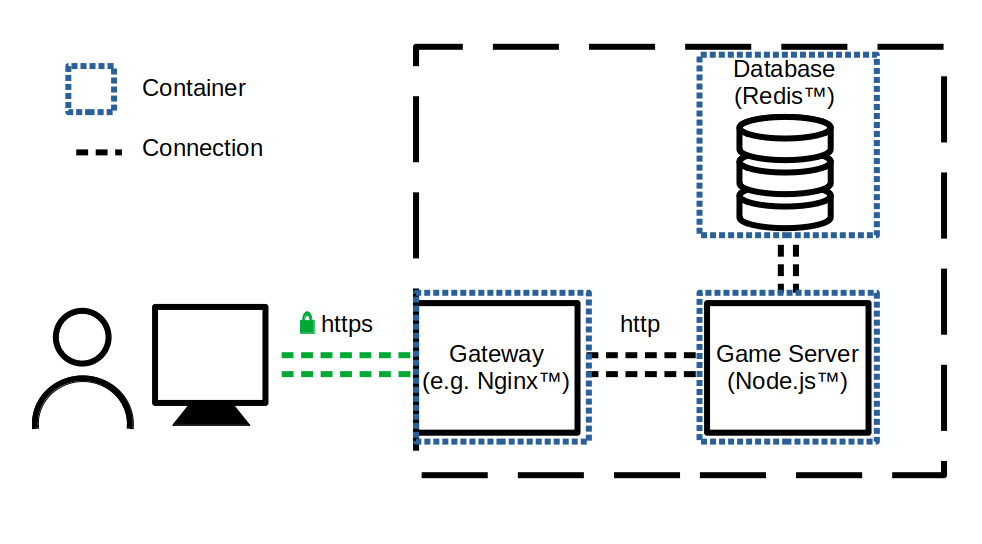
The reverse-proxy setup protects your app by routing all requests to the
game server through a gateway or proxy. This way, only port 80 (HTTP) and port
443 (HTTPS) are exposed. Additionally, static files are served using this
proxy instead of the Node.js™ backend, unballasting and speeding up the
game server. Finally, the proxy offers transport encryption over HTTPS.
# Manual Deployment
You can also manually configure the predefined Docker™ configurations and deploy your own setups. However, we recommend the deploy script in most use cases.
You can find the docker-compose configuration files used by the deploy script
in the docker/ folder.
To customize, edit the Dockerfile and add your own docker-compose.yml in the
project's root. Then run:
docker-compose up -d
← Customizing Logging →